Getting Started
We are so excited you created an instructor account! We hope you take the time to explore the platform. The walk through below will guide you through your dashboard to your demo assignment. However if you have already tried it out or wanted to move onto the next step of creating your own course, please click the orange button below that will direct you over to the step by step guide of creating your own course.
If at any point you have questions feel free to email us at support@accountingpass.com. Finally if you are having trouble or would just prefer a guided tour to creating your own course, click on the black button below where you can schedule a call with one of our team members who will be happy to assist in getting your course set up.
Walk-Through Demo
Step 1: In the top left hand corner of your dashboard click on the “ Instructor Mode”, then select “Student Mode”.
This will bring you to the student dashboard area. Every instructor has access to their own student dashboard so you can view your course exactly as your students would.

Step 2: Once you arrive at the student dashboard, there are two different ways to access your assignment.
1. Just scroll to the bottom of the dashboard page and you will see under " Upcoming Assignments" where you can begin Assignment #1
2. On the left hand menu, if you select "Assignments"; Assignment #1 will be the first thing that pops up on your page

Step 3: Start the Assignment! Once you are within the assignment there will be 5 different questions. Feel free to click through each question in the question bank on the left hand side.
Important! Once you have answered the question and would like your question to be submitted, scroll down and click the " Grade Attempt" button.


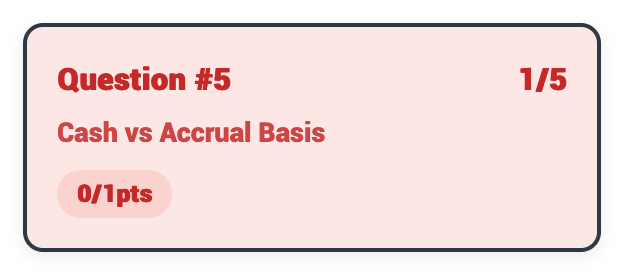

Congratulations you've completed your assignment! Wahoo! Hopefully we all received full points for every question, but if not, no worries, we have multiple attempts on our demo course! Just so you all can see the full feature.
As you can see above, or possibly experience on your own course.
-
Green equals correct full awarded points
-
Yellow means partial points awarded
-
Red means zero points awarded
What's next?
Now that you have tried our Demo course, it's time to create your own. Click the orange button below and it will take you over to the Create Your Own Course Guide. It will also walk you through all other features such as grade book, how to create Financial Accounting and Managerial Accounting courses.